An Agent That Keeps Working After the Laptop Closes: Remote Development with Lightsail, Hermes, and Discord#
2026-06-01
The Problem Started When I Closed the Laptop#
For a while, I used Hermes Agent installed directly on my local laptop. The experience was fast and intuitive: open a repository, edit files, run tests, and keep the agent close to the development environment.
But it did not fit my actual working pattern. The moment I closed the laptop and put it in a bag, the agent stopped as well.
The reason to use an AI agent is to delegate work while I am away. If the runtime is tied to a local laptop, I can check messages on mobile, but the actual work cannot continue. Long-running tests, dependency installation, repository analysis, and similar tasks all require the laptop to remain awake.
So I changed the direction. The agent should live on an always-on remote server, and I should be able to command it from anywhere through messaging.
Why Discord Felt Better Than Slack#
Slack was the first option I considered. Since many work conversations already happen in Slack, connecting the agent there felt natural. But in practice, I ran into a few frictions.
- Bot invocation and channel context sometimes behaved differently from what I expected.
- Message threads and long task logs could make the flow hard to follow.
- On mobile, mixing a personal development agent into the same space as team communication felt noisy.
This does not mean Slack is a bad choice. For team-wide bots, alerts, and shared work channels, Slack is still excellent. But for a personal remote development agent, Discord felt like a better fit. Other users’ experiences pointed in the same direction: create a private Discord server, add a dedicated Hermes channel or use DM (Direct Message), and keep the interaction simple.
My conclusion was:
| Purpose | Better Fit |
|---|---|
| Team-wide alerts and work channel integration | Slack |
| Personal remote development agent | Discord |
| Delegating long-running work from mobile | Discord |
| Organization-wide bot operation | Slack or a dedicated governance model |
Target Architecture#
The final shape I wanted was simple.
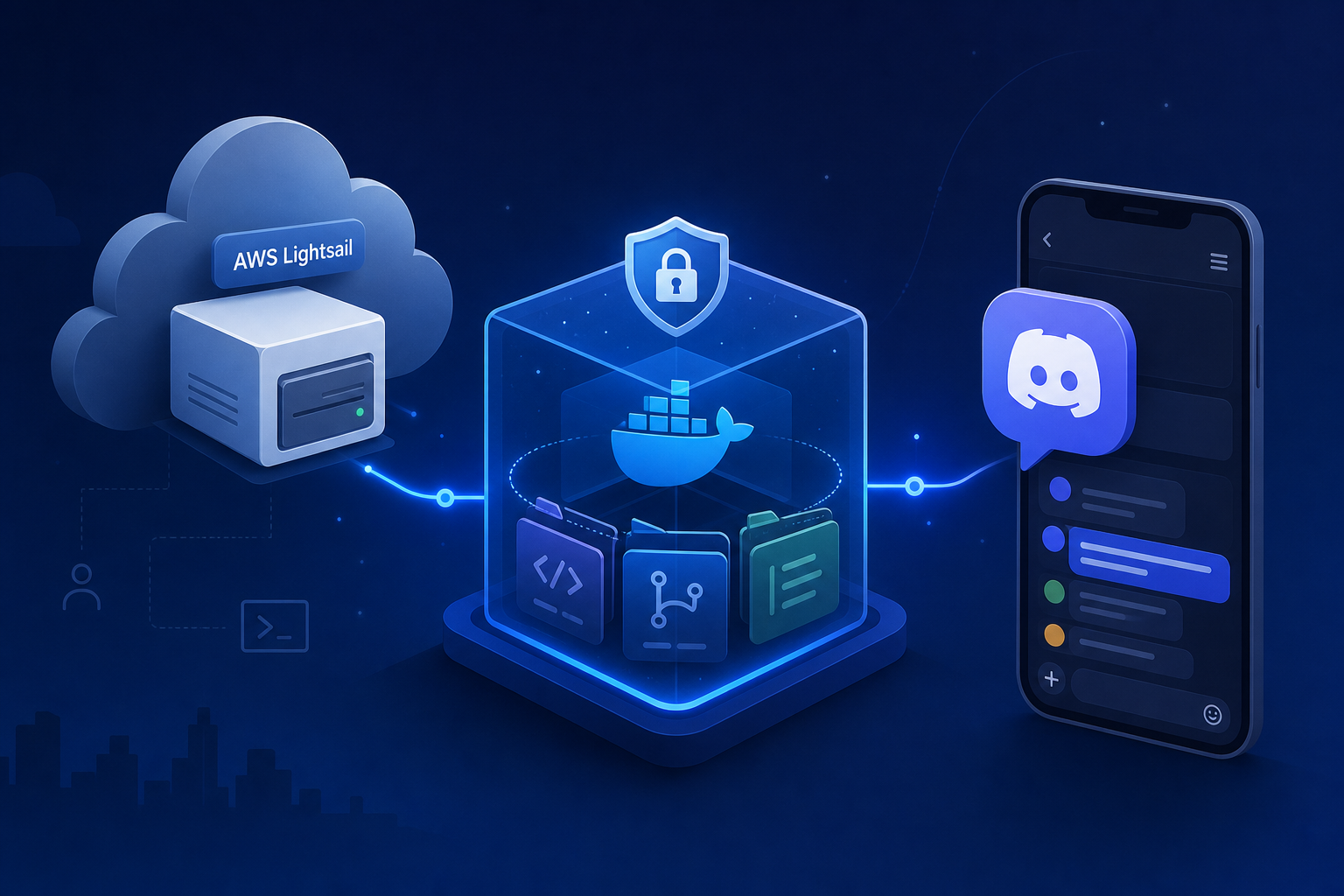
Mobile Discord
  ↓
Hermes Gateway
  ↓
AWS Lightsail instance
  ↓
Docker sandbox
  ↓
GitHub repositories under /workspace
There are two core ideas.
First, the Hermes gateway keeps running on the remote server. Even if my laptop is closed, it can still receive Discord messages.
Second, actual command execution happens inside a Docker sandbox. That reduces the chance that Hermes accidentally reads or modifies sensitive host files.
Why Lightsail?#
I considered both EC2 and Lightsail. EC2 gives finer control through IAM, VPC, Security Groups, SSM Session Manager, and related AWS primitives. Lightsail is simpler. If you understand instances, static IPs, firewalls, and snapshots, you can start quickly.
This setup is not for operating a large production service. It is a personal remote agent runtime. For that purpose, Lightsail was enough.
My recommended baseline is:
| Item | Choice |
|---|---|
| OS | Ubuntu LTS |
| Region | A region close to the user |
| Memory | 2GB minimum, 4GB or more recommended |
| Disk | 40GB minimum, 80GB or more for multiple repos and build caches |
| Firewall | SSH restricted to your own IP |
| Static IP | Recommended for long-running use |
The important point is not to expose Hermes API or dashboard ports publicly. The Discord gateway maintains an outbound connection to Discord, so for personal use, SSH is usually the only inbound port you need.
Security: Convenience Versus Isolation#
In this environment, the sensitive asset is not just the code. It is the authority around the code. The following values must never appear in chat logs or public documents.
- LLM provider API keys
- Discord bot tokens
- GitHub fine-grained tokens
- Notion, Slack, and other MCP (Model Context Protocol) server tokens
- Server SSH keys
- Company repository names and internal paths
So I used the following boundaries.
| Location | Role |
|---|---|
| Lightsail host | Hermes config, .env, gateway process |
| Docker sandbox | Repository clone, build, test, code edits |
| Discord | Commands and result review |
| GitHub token | Fine-grained access to selected repositories only |
A Docker sandbox is not a perfect vault. If repositories are readable and writable inside the sandbox, the agent can naturally modify those repositories. But it provides an important boundary between everyday work and sensitive host files such as Hermes configuration, SSH keys, and .env.
Setup Process#
The steps below are generalized for public writing. Real IPs, tokens, account IDs, and repository names are represented as placeholders.
1. Create the Lightsail Instance#
Create an Ubuntu LTS instance in AWS Lightsail. After creation, adjust the firewall in the Networking tab.
IPv4 Firewall
- SSH 22: allow only your current IP
- HTTP 80: remove
- HTTPS 443: remove
- Other ports: none

IPv6 Firewall
- If you do not use IPv6, remove all rules
- If you use IPv6, restrict SSH 22 to your own IPv6 address
Lightsail manages IPv4 and IPv6 firewalls independently. If you lock down IPv4 but leave IPv6 open, you may accidentally leave another access path.
2. Connect with SSH and Install Base Packages#
Download the Lightsail default key and restrict its local permissions.
chmod 600 <LIGHTSAIL_KEY>.pem
ssh -i <LIGHTSAIL_KEY>.pem ubuntu@<LIGHTSAIL_PUBLIC_IP>
Then install basic packages.
sudo apt update
sudo apt upgrade -y
sudo apt install -y git curl ca-certificates ufw fail2ban jq unzip
3. Create a Dedicated Hermes User#
Avoid running Hermes as root or as the default user. Create a dedicated user.
sudo adduser --disabled-password --gecos "" hermes
sudo install -d -m 700 -o hermes -g hermes ~hermes/.ssh
sudo cp ~/.ssh/authorized_keys ~hermes/.ssh/authorized_keys
sudo chown hermes:hermes ~hermes/.ssh/authorized_keys
sudo chmod 600 ~hermes/.ssh/authorized_keys
From this point, connect as the hermes user.
ssh -i <LIGHTSAIL_KEY>.pem hermes@<LIGHTSAIL_PUBLIC_IP>4. Install Docker#
Docker installation needs sudo, so do it from the ubuntu user.
curl -fsSL https://get.docker.com | sudo sh
sudo systemctl enable --now docker
sudo usermod -aG docker hermes
Then open a new SSH session as hermes and verify Docker access.
docker run --rm hello-world5. Install Hermes and Configure the Model#
Install Hermes as the hermes user.
curl -fsSL https://raw.githubusercontent.com/NousResearch/hermes-agent/main/scripts/install.sh | bash -s -- --skip-browser
echo 'export PATH="$HOME/.local/bin:$PATH"' >> ~/.bashrc
source ~/.bashrc
Configure the model provider with:
hermes modelIf you use an OpenAI API key directly, the default base URL https://api.openai.com/v1 is the right value.
6. Enable the Docker Backend#
Configure Hermes so that actual commands run inside a Docker sandbox.
hermes config set terminal.backend docker
hermes config set terminal.container_persistent true
The relevant config roughly looks like this:
terminal:
  backend: docker
  container_persistent: true
  docker_forward_env: []
docker_forward_env: [] means host environment variables are not automatically forwarded into the work container.
7. Install Browser Tools#
If frontend E2E (End-to-End) testing or real browser checks are needed, install browser tools too.
hermes acp --setup-browser --yesFor browser automation to work from Discord, the Browser Automation toolset must also be enabled for the Discord platform in hermes tools.
8. Connect GitHub Repositories#
For four or five company repositories, there are two practical options.
| Method | Pros | Cons |
|---|---|---|
| Per-repo deploy key | Blast radius is limited to one repo | More setup per repository |
| Fine-grained token | One token can cover multiple repos | All selected repos are affected if it leaks |
I chose the fine-grained token path for convenience. In GitHub, select only the required repositories and grant limited permissions such as Contents: Read and write and Pull requests: Read and write.
Inside the Docker sandbox, configure Git credentials.
git config --global credential.helper store
git config --global user.name "<YOUR_NAME>"
git config --global user.email "<YOUR_EMAIL>"
Clone repositories under /workspace.
mkdir -p /workspace
cd /workspace
git clone https://github.com/<ORG>/<REPO_A>.git
git clone https://github.com/<ORG>/<REPO_B>.git
The important check is that the token must not remain in the remote URL.
git remote -vThe expected shape is:
https://github.com/<ORG>/<REPO>.git9. Create and Invite the Discord Bot#
Create a new application in the Discord Developer Portal and generate a bot token. In the bot settings, enable:
Server Members Intent: ON
Message Content Intent: ON
In the OAuth2 URL Generator, choose:
Integration Type: Guild Install
Scopes:
- bot
- applications.commands

Bot Permissions:
- View Channels
- Send Messages
- Read Message History
- Embed Links
- Attach Files
- Use Application Commands
Use the generated URL to invite the bot to a private Discord server.
10. Configure the Discord Allowlist#
Enable Developer Mode in Discord and copy your User ID. In the Korean UI, the path is roughly:
User Settings
→ Developer
→ Developer Mode ON
→ Right-click your profile
→ Copy User ID
Store the values in ~/.hermes/.env on the Lightsail instance.
DISCORD_BOT_TOKEN=<DISCORD_BOT_TOKEN>
DISCORD_ALLOWED_USERS=<YOUR_DISCORD_USER_ID>
MESSAGING_CWD=/workspace
Do not enable the following in a public or semi-public environment.
GATEWAY_ALLOW_ALL_USERS=true
DISCORD_ALLOW_ALL_USERS=true
11. Run the Gateway with systemd#
After testing, register the gateway as a systemd service.
[Unit]
Description=Hermes Gateway
After=network-online.target docker.service
Wants=network-online.target
Requires=docker.service

[Service]
User=hermes
WorkingDirectory=<HERMES_HOME>
Environment=PATH=<HERMES_HOME>/.hermes/node/bin:<HERMES_HOME>/.local/bin:/usr/local/bin:/usr/bin:/bin
ExecStart=<HERMES_HOME>/.local/bin/hermes gateway
Restart=always
RestartSec=5

[Install]
WantedBy=multi-user.target
Apply it.
sudo systemctl daemon-reload
sudo systemctl enable --now hermes-gateway
sudo systemctl status hermes-gateway
Treat MCP Servers and Skills as Operational Authority#
One interesting point during setup was MCP server configuration. The agent inside the Docker sandbox cannot see the host’s ~/.hermes/config.yaml. That is inconvenient, but from a security perspective it is expected. Adding an MCP server expands the tools and external systems the agent can access.
If convenience matters more, you can mount only config.yaml into the sandbox.
terminal:
  backend: docker
  docker_volumes:
    - <HERMES_HOME>/.hermes/config.yaml:/host-hermes/config.yaml
This choice should be made carefully. If the agent can directly add MCP servers, it can expand its own external tool access. Actual secrets should still live in .env, while config.yaml should refer to them with ${ENV_NAME} placeholders.
Skills are similar. Skills live under ~/.hermes/skills/ and affect how Hermes behaves. They are useful, but installing arbitrary skills from public URLs is risky. In a company work environment, it is better for a human to review and approve new skills, even if the agent drafted them.
Final Checks#
After setup, I used Discord DM to check the following.
Tell me the current working directory and execution environment.List the repositories under /workspace and show git status for each.Use browser automation to visit https://example.com and tell me the page title.If Notion or Slack MCP servers are connected, show me the available tools.If all four work, the basic requirements for mobile-driven remote development are in place.
What Remains#
The core of this setup was detaching the agent from the laptop. A local laptop is still the most comfortable development environment, but it is not an always-on runtime. A small remote server like Lightsail is not an IDE, but it is enough for an agent to think, test, and leave results behind.
Discord is the thin control layer on top. From mobile, I can write a task description, the agent can inspect repositories on the remote server, and it can run tests when needed. When I open the laptop again, I can continue from the result.
This structure will not fit every team. For an organization-wide bot, Slack, permission management, audit logs, and network policies deserve much stricter attention. But for an individual developer extending their own workflow, Lightsail + Hermes + Discord + Docker sandbox is a practical combination.
The work no longer stops just because the laptop closes. That alone changes the experience of using an agent.