Where Should You Use Codex? A Guide to CLI, App, Cursor, and Claude Code#
2026-04-12
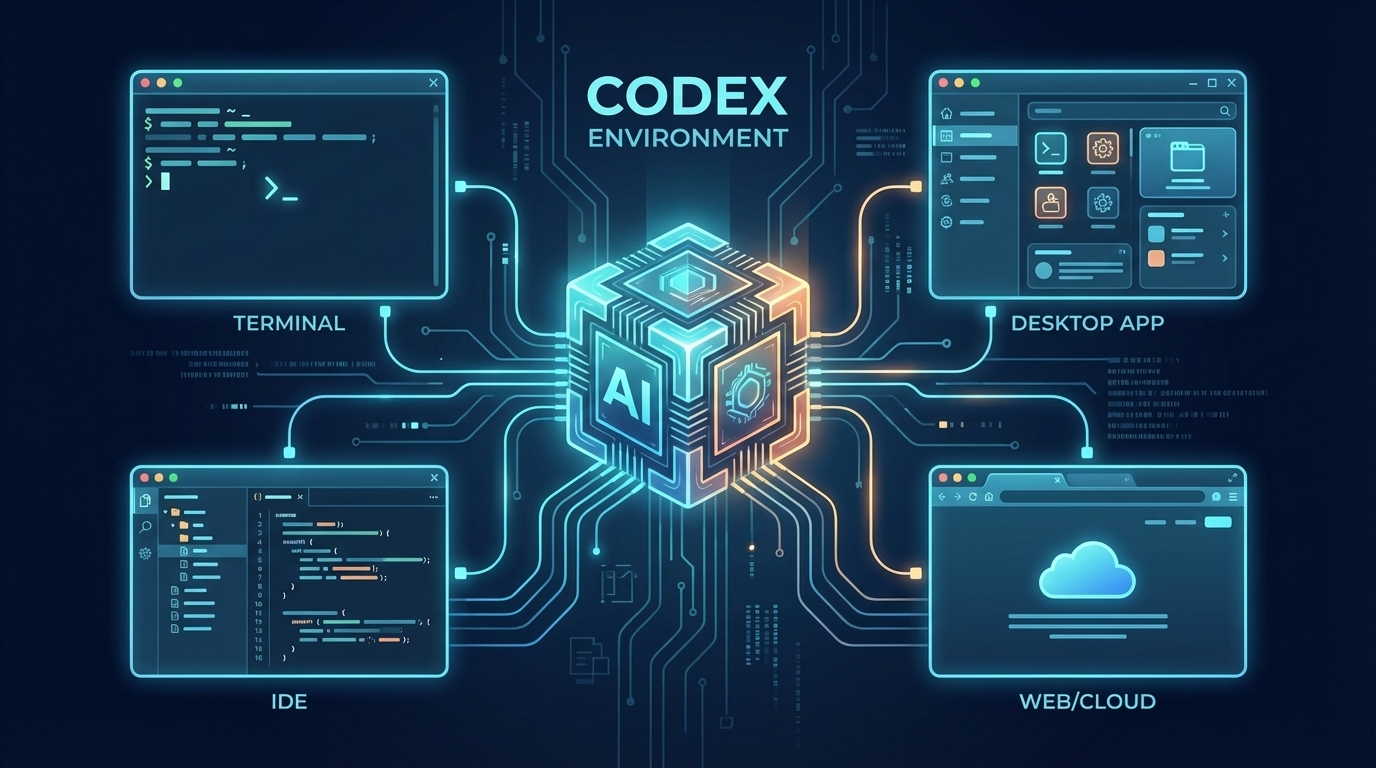
These days, a lot of people are saying good things about Codex. But the moment you try to actually use it, things get confusing.
- Should you use
Codex CLI? - Is there a separate
Codex App? - Should you install the Codex extension inside
Cursor? - Or is it enough to simply choose a
Codex modelinside Cursor chat? - Should you connect it to
Claude Codeas a plugin?
I had the same questions, so I went through the official documentation and organized what I found. I tried to write this in a way that even beginners, or people who do not usually work with coding tools, can follow comfortably.
Here is the short version up front.
Codex CLI / App / Web / IDE Extensionare, broadly speaking, ways of using OpenAI Codex itself.Selecting a Codex model inside Cursor chatmeans you are using a Codex model, but not the Codex agent itself.Claude Code + codex-plugin-ccis closer to keeping Claude Code as your main tool and calling Codex only when needed.
Three words make this much easier to understand#
The reason this topic feels messy is that people often mix up model, agent, and client.
I find it easier to think of them like this.
- Model: the brain. Something like
GPT-5.3 Codex. - Agent: the working behavior around that brain. It includes reading files, editing code, running commands, and managing intermediate state.
- Client: the surface where a human uses the agent. A terminal, an app, the web, or an IDE extension.
An easy metaphor is this:
- the model is the
engine - the agent is the
driving system - the client is the
driver’s seat
Two tools may seem similar from the outside, but if only the engine is shared and the driving system is different, the real experience can feel quite different.
The key points from the official Codex docs#
The official docs are fairly clear about the Codex IDE extension.
“The Codex IDE extension gives you access to Codex directly in VS Code, Cursor, Windsurf, and other VS Code-compatible editors. It uses the same agent as the Codex CLI and shares the same configuration.”
This line matters a lot. It means that installing the Codex extension in Cursor is not just “putting a Codex model inside an IDE.” It is much closer to using the same Codex agent as the CLI, but from inside the IDE.
On the other hand, the docs for Codex App say this:
“The Codex app and Codex CLI use the same underlying Codex agent and configuration but might rely on different versions of the agent at any time and some experimental features might land in the Codex CLI first.”
In other words, the App is definitely a real Codex environment, but you should not assume it is always perfectly identical to the CLI in version or features.
The Codex SDK docs and repository README also say something important. The SDK is not just a thin model API wrapper:
“The TypeScript SDK wraps the
codexCLI from@openai/codex. It spawns the CLI and exchanges JSONL events over stdin/stdout.”
So the SDK is also not “just making model calls.” It is much closer to wrapping the local Codex CLI and letting a program control a Codex agent.
The environments, one by one#
Now let me go through the main options in simpler terms.
1. Codex CLI#
Codex CLI is Codex used directly from the terminal.
According to the official docs, the CLI can do things like this:
- read and modify files in a local directory
- run commands
- use features like
review,subagents,web search,cloud, andMCP - run non-interactive automation with
codex exec
I think of the CLI as the baseline reference point for Codex. The reason is simple: it tends to expose the most direct, low-level, and automation-friendly form of Codex.
For example, these are strongly CLI-shaped capabilities:
codex exec: for scripts, CI, and automationcodex mcp-server: expose Codex so other tools can call itcodex app-server: the lower-level protocol server for rich clientscodex completion: shell completioncodex features: feature flag control
So if your goal is “I want to understand what Codex really is,” the CLI is usually the best place to start.
When CLI is a good fit#
- when you are doing deep debugging
- when you want to run tests, fix things, and repeat quickly
- when terminal workflows feel natural to you
- when you want CI or automation integration
- when you want the clearest sense of what Codex itself is
2. Codex App#
Codex App is a separate desktop app from OpenAI.
At first glance, it may sound like “just a GUI wrapper around the CLI,” but the official docs show that it is more than that. The app includes features such as:
- handling multiple projects in parallel
worktreesupport- built-in Git tools
- a diff pane
- an integrated terminal
- automations
- synchronization with the IDE extension for threads and context
So it is less like “a small coding tab inside a general-purpose chat app” and more like a dedicated coding app built around Codex itself.
That said, the official docs also clearly say that the App and CLI may not evolve in perfect lockstep.
“some experimental features might land in the Codex CLI first”
Put simply, that means something may work in the CLI before it works in the App.
So I think the right way to view the App is this:
- it is a real, dedicated GUI for Codex
- but the CLI is still likely to be the reference point for the newest capabilities
When App is a good fit#
- when you want to run multiple tasks in parallel
- when you want clean task isolation through
worktree - when you want Git diffs and threads in one place
- when GUI feels better than a terminal
Areas where CLI is still stronger#
- script automation
- CI integration
- JSONL event streams
- shell pipeline composition
- checking experimental features first
3. Codex Web#
Codex Web is closer to using Codex through ChatGPT.
The official docs describe using chatgpt.com/codex, connecting GitHub, and letting Codex work with your repositories and create PRs. They also describe using Codex cloud for background and parallel tasks.
Compared with an IDE-centered experience, this feels less like “I am editing code locally right here” and more like delegating work in the cloud and then reviewing the result.
When Web is a good fit#
- when you want long-running work connected to GitHub
- when you want background tasks without tying up your local machine
- when you want a more natural issue / PR workflow
4. Cursor + Codex IDE Extension#
This is one of the most confusing combinations at first.
The usual question becomes:
If I install the Codex extension in Cursor, am I really using Codex?
My answer is mostly yes.
That is because the official docs explicitly say it uses the same agent as the CLI and shares the same configuration.
So in this case, you are not just:
- pulling in a Codex model
You are much closer to:
- using the Codex agent itself inside the IDE
The IDE extension also officially supports things like:
Agent/Chat/Agent (Full Access)modes- reasoning effort control
- cloud delegation
- web search
- image inputs
/review- auto context
So if your goal is “I want to use real Codex from inside my IDE,” this is a strong option.
Still, you should not think of it as perfectly identical to the CLI. Some capabilities remain much more CLI-shaped:
codex execcodex mcp-servercodex app-servercodex completioncodex features
So the most accurate summary is: a lot of the core agent capability is shared, but the CLI still exposes a wider set of low-level controls and automation surfaces.
Good fit for#
- people who want to stay in Cursor as their main IDE
- people who want Codex inside the editor rather than in a separate app
- people who want the actual Codex agent, but prefer IDE workflows over terminal workflows
5. Cursor native agent + Codex model#
This is completely different from the Codex IDE Extension.
Here, what people usually mean is simply selecting a Codex-family model in the Cursor chat panel.
The structure is basically:
- driver’s seat: Cursor
- agent implementation: Cursor
- model: Codex
In this case, you are using a Codex model, but you are not using OpenAI Codex’s own agent / harness as-is.
Cursor’s own blog makes this clear. Cursor explains that it adjusted its harness to make Codex models work better in Cursor’s environment.
That means even if the model is the same, the overall experience can still differ because of things like:
- which tools the agent gets
- how context is injected
- how progress updates are shown
- how approvals are handled
- how lint-reading and self-correction loops are designed
So when people ask, If I want to experience Codex properly, shouldn’t I use both the Codex model and the Codex agent? I think the answer is yes.
This environment is better understood as:
- keeping
Cursoras the agent environment - and swapping only the
modelto Codex
Good fit for#
- people who want to stay fully inside Cursor
- people who want to sample the Codex model style first
- people who do not want to add another tool right away
6. Claude Code + codex-plugin-cc#
This combination is better described as bringing Codex into Claude Code when needed, not as making Codex the main tool.
According to the official README, the plugin provides commands like:
/codex:review/codex:adversarial-review/codex:rescue/codex:status/codex:result/codex:cancel
The core flow looks like this:
- use Claude Code normally
- run a Codex review when you want a second opinion
- delegate a blocked problem to Codex when needed
So by default, it is much closer to explicit, on-demand Codex involvement.
The most “automatic” feature documented officially is the review gate.
/codex:setup --enable-review-gateThis can use a Stop hook to run a Codex review based on Claude’s response and block the stop if issues are found.
Still, that is better understood as an automatic review gate, not as “Codex is always quietly working beside Claude all the time.”
Good fit for#
- people who want Claude Code to stay their main tool
- people who want another model’s review perspective
- people who want a stronger pre-shipping challenge pass
7. Codex SDK#
This is probably the easiest place for beginners to misunderstand what Codex SDK really is.
At first glance, it is tempting to think, “Isn’t this just another OpenAI API library?” But the docs and repo show something stronger.
The SDK deals with concepts like:
threadrun()runStreamed()command_executionfile_changemcp_tool_callweb_searchtodo_list
That means the SDK is not just a text-generation API. It is much closer to a programmatic interface for controlling Codex agent sessions.
So why say that it is “different from interactive product UX”?
Because the SDK is basically material, not a finished product.
CLI / App / IDE extension already give you a complete user experience:
- a conversation surface
- approval UI
- diff viewing
- thread management
- Git integration
- worktree flows
- slash commands
The SDK does not hand you all of that out of the box. Instead, it lets you:
- embed Codex into your own app
- run Codex in CI
- connect Codex to internal tools
- build your own orchestration layer
So it is not “weaker.” It is simply meant for a different purpose.
Good fit for#
- teams who want Codex inside products, internal tools, or automation
- people who want Codex in CI or scheduled jobs
- people building multi-agent orchestration in code
So what should you actually use?#
By this point, the natural question is:
What should I try first?
This is the most practical way I would frame it.
1. If you want to understand Codex properly#
Start with Codex CLI.
The reasons are simple:
- it is closest to the reference experience
- it exposes the widest low-level and automation surface
- it gives you a baseline for understanding the App, Extension, and SDK later
2. If Cursor is your main IDE#
Think of it as two different goals.
I want Codex itself inside my IDE→Codex IDE ExtensionI want to keep Cursor’s experience and only switch the model to Codex→Cursor native agent + Codex model
These look similar at first, but they are actually quite different.
3. If Claude Code is your main tool#
codex-plugin-cc can be a strong supporting layer.
But in this setup, Codex is less the main engine and more:
- a reviewer
- a challenger
- a rescue pitcher
4. If GUI and parallel task management matter a lot#
Codex App becomes very attractive.
It is especially useful if you want to manage multiple threads, worktrees, and Git diffs in one visual place. Just remember that CLI remains the more likely reference point for the newest capabilities.
My current conclusion#
If I had to give someone a simple recommendation today, it would probably be this order:
- Start with
Codex CLIto get the real baseline feel. - If Cursor is your main IDE, try
Codex IDE Extension. - Also compare that with simply switching the model inside Cursor.
- If you use Claude Code heavily, add
codex-plugin-ccas a reviewer layer. - If parallel work becomes important, expand into
Codex App.
In other words, instead of trying every surface at once, it is less confusing to pick one baseline first, then add the others based on role.
Short summary#
Codex CLIis the baseline reference point.Codex Appis a real dedicated GUI, but some features may reach CLI first.Codex IDE Extensionis close to using the real Codex agent inside the IDE.Cursor native + Codex modelmeans using a Codex model, not the Codex agent itself.Claude Code + codex-plugin-ccis a supporting setup where Codex is called when needed.Codex SDKis not just a model API. It is much closer to a programmatic interface for controlling the Codex agent.
References#
- OpenAI Developers — CLI
- OpenAI Developers — Codex CLI features
- OpenAI Developers — IDE extension
- OpenAI Developers — Codex IDE extension features
- OpenAI Developers — Codex Web
- OpenAI Developers — Codex App features
- OpenAI Developers — Codex App troubleshooting
- OpenAI Developers — Codex SDK
- OpenAI Developers — Codex App Server
- OpenAI Developers — Use Codex with the Agents SDK
- GitHub — Codex plugin for Claude Code
- Cursor Blog — Improving Cursor’s agent for OpenAI Codex models
- Cursor Docs — GPT-5.3 Codex