First Impressions of Claude Cowork: Bringing Agents to Non-Dev Work#
2026-02-08
A feature called Claude Cowork has been released. (It’s been out for a while, but I only just got around to trying it.) I’ll ramble on a bit more below, but for those short on time, here’s a quick summary:
- Think of Claude Cowork as Cursor for non-developers.
- It can handle file management & referencing + plugin integration + MCP or Skill additions + web browser control.
- I believe that workflows built around Claude Cowork (or similar services) will become mainstream before long.
- That said, it’s still officially in a research preview stage and currently only available on macOS, so many people will need to wait a bit longer.
Background#
While working with Cursor (an AI-powered code editor), I started wondering whether the same approach could be applied to tasks beyond software development. However, since Cursor is inherently a software development tool, there was a real barrier to using it for non-dev work. So I had been quietly hoping that ChatGPT or Claude would release some kind of application better suited for non-development tasks—and it turns out Claude shipped a feature called Cowork first.
Cowork isn’t a separate app; it’s a feature added to the Claude desktop app. (See the image below.)
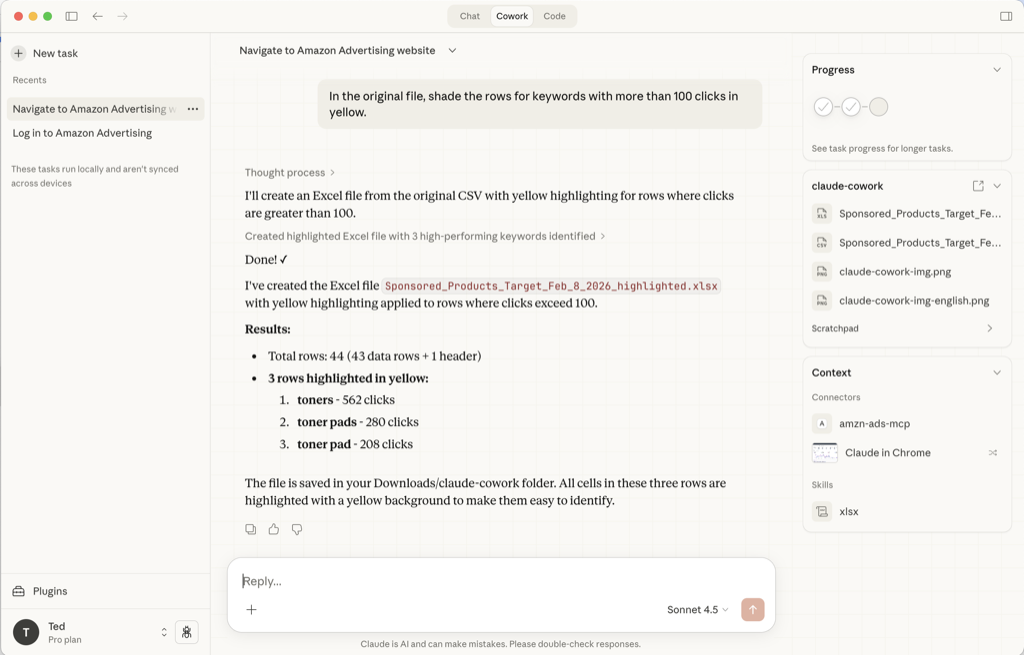
As a side note, you could probably do similar things with Claude Code. But since Claude Code is also ultimately a developer tool, Cowork—designed specifically for non-dev work—is likely the better choice.
Setting Up#
Unfortunately, Cowork is still officially in a research preview stage and only available on macOS, so Windows users will need to wait a bit longer. For Mac users, the setup looks roughly like this:
- Create a Claude account and subscribe to a Pro plan or higher.
- Install the Claude desktop application.
- Launch the app, go to Settings > Features, and enable “Allow network requests.”
- You’ll see tabs at the top of the app: [Chat / Cowork / Code]. Select Cowork.
- Set a working folder.
- Just tell Cowork “Set up a working folder” and a folder-selection UI will appear.
- Claude will then be able to add, modify, or delete files inside that folder.
- Connect a browser.
- Go to the Chrome Web Store, find “Claude in Chrome,” install it, and run it.
- Claude will log in automatically during the process; if it doesn’t, log in manually.
- Then tell Cowork “Open a browser,” and it will open a browser tab that Claude can control.
- (Optional) You can connect MCP servers or Skills as needed.
- I haven’t explored this deeply yet; I plan to cover it separately once I have more experience.
Use-Case Example#
There are many possible applications, but here I’ll walk through a rough example of downloading and editing a targeting list for a specific campaign from an ad console.
- “Open a browser and navigate to the ad console.”
- You log in to the ad console yourself.
- You could give it your credentials and ask it to log in—it’s quite capable of typing and clicking buttons—but two-factor authentication can still be tricky, so doing it yourself feels easier for now.
- “Find the targeting list for campaign XXX in the ad console and export it.”
- Claude recognizes the browser screen, locates and clicks the right buttons to navigate to the correct page, and clicks the export button to download the file.
- Claude can figure things out on its own even without prior knowledge. But if you register a “Skill” that describes how to handle specific tasks, it can execute them faster and more accurately.
- Move the downloaded file into the working folder you set up in Claude.
- If you set your download folder to match Claude’s working folder, you can skip this step entirely.
- “Sort the file by click count in descending order and save it.”
- “Highlight rows with 100 or more clicks in yellow.”
- If the source file is a CSV, formatting like highlighting isn’t possible, so it converts the output to XLSX format instead.
- “Upload the Excel file to Google Drive and share the link.”
- I followed the instructions to connect the Google Drive connector, and while the UI said it was connected, it didn’t actually work in some cases.
- This was likely a temporary bug. For an early-stage product, I expect these rough edges to improve over time.
Additional Thoughts#
If you simplify what developers do with development tools, it comes down to: creating a folder for source code / opening it in a dev tool / creating and editing files / checking results in a browser or simulator. On top of that, AI agents now write the code / launch apps in browsers or simulators / analyze screens and logs—continuously working toward what the user wants to achieve.
I think the exact same pattern can be applied to non-development work. Give the AI agent a working folder where it can do its thing / ask it to create files / ask it to edit them however you want / tell it to learn when it doesn’t know how (Skills) / order it around in the browser—do this, do that.
When using plain ChatGPT, you upload files during chat / copy the response and paste it somewhere / download and review, then re-upload if it’s not right—and this cycle repeats. Cowork is significant because it connects this entire process around a “workspace,” turning it into one continuous flow.
It’s still an early version, so there are bugs and cases where things don’t execute as intended. But I expect these issues to improve over time. Once it stabilizes, a Windows version will likely follow.
I believe the kind of workflow described above will become mainstream before long. When that happens, services like Cowork will inevitably reshape the competitive landscape for existing business tools. If you’re building an AI agent service, it’s worth paying close attention to offerings like Cowork—adopt what works, and find what they’re missing to build your own relative strengths.
Reference Links#
- Cowork official page: https://claude.com/product/cowork
- Getting started with Cowork: https://support.claude.com/en/articles/13345190-getting-started-with-cowork